Title here
Summary here
A failover domain groups compute resources that can host and recover virtual servers with High Availability (HA) protection. Each compute resource can belong to only one failover domain at a time. HA evacuates virtual servers only to compute resources within the same failover domain.
To view and manage your failover domains, go to High Availability > Failover Domains. The Failover Domains interface lists all configured failover domains, including the number of compute resources in each domain, their locations, storage types, assigned IP blocks, and active status.
You must create and configure a failover domain to use HA.
To create a failover domain, perform the following steps:
Go to High Availability > Failover Domains.
Click Add Domain. The New Failover Domain interface appears.
Enter a name for the failover domain. The name must be unique. Optionally, enter a description. The description can span multiple lines and contain up to 10,000 characters.
Select a location.
Select the network storage at the location you chose. SolusVM displays a list of all compute resources that match your location and storage selection.
Select at least two compute resources to include in the failover domain.
Click Next.
Select IP blocks.
Note:
All compute resources in a failover domain must use matching IP address blocks. Mismatched or incompatible IP ranges can cause virtual servers to lose network connectivity after a failover. Verify that all IP blocks you select can route traffic to the internet. When you click Create, SolusVM applies these IP blocks to all compute resources in the failover domain.
Click Create.
After you create a failover domain, you can remove compute resources from it until it has one or no members. To delete the failover domain, remove all compute resources first.
To manage a failover domain, go to High Availability > Failover Domains and click the domain. The failover domain page displays a health and resource summary for that domain.
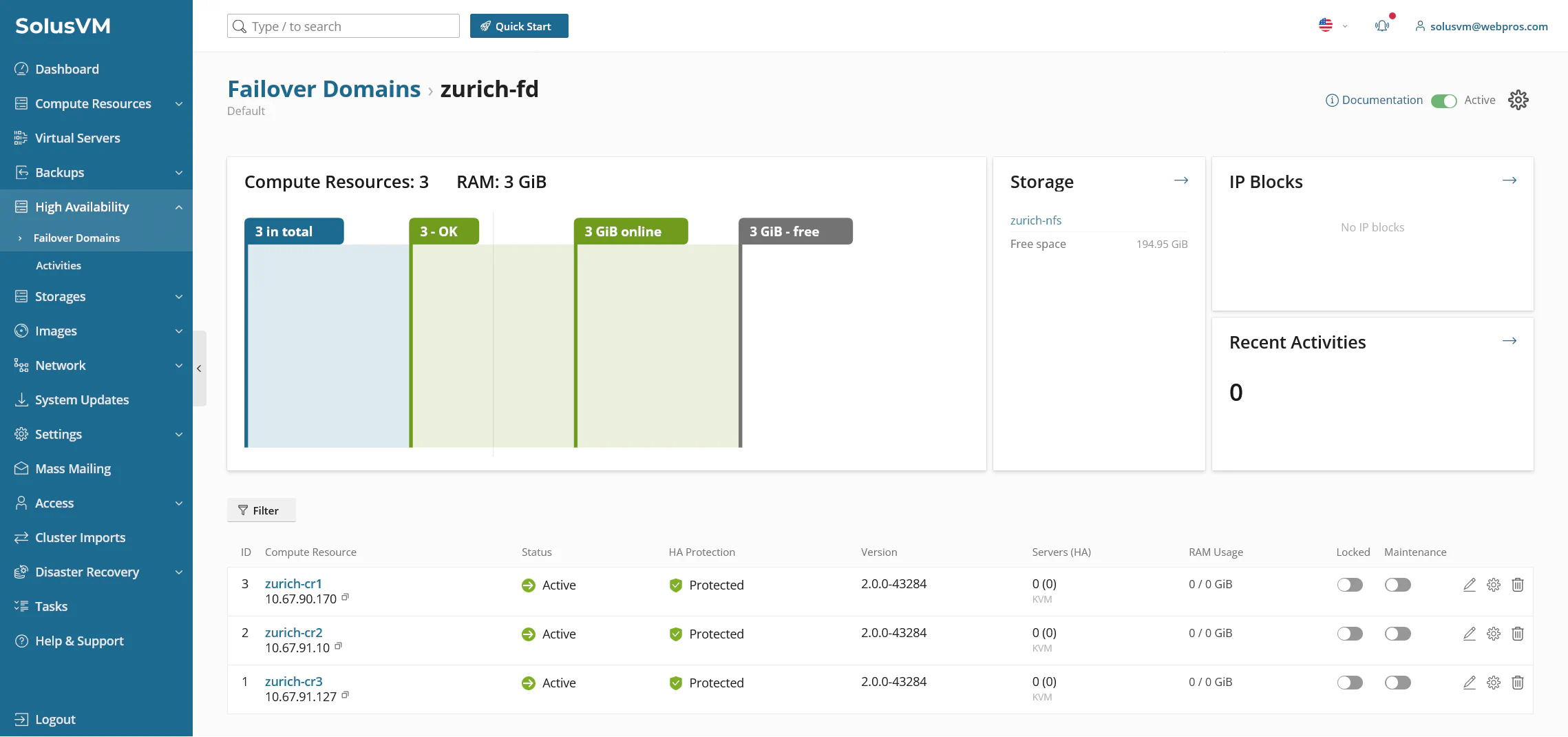
The summary includes the following information:
Below the summary, the compute resource table lists all compute resources in the failover domain with the following columns:
| Column | Description |
|---|---|
| ID | Unique identifier of the compute resource. |
| Compute Resource | Hostname and IP address of the compute resource. |
| Status | Current connection status of the compute resource, such as Active, Running, or Unavailable. |
| HA Protection | HA protection status of the compute resource. See High Availability Protection Status. |
| Version | SolusVM Agent version running on the compute resource. |
| Servers (HA) | Total virtual servers on the compute resource. |
| RAM Usage | RAM in use out of the total RAM available on the compute resource. |
| Locked | Whether the compute resource is locked. |
| Maintenance | Whether the compute resource is in maintenance mode. |
You can disable HA for a specific failover domain in two ways, without removing its configuration.
From the Failover Domains list:
From the failover domain detail page:
Note:
When you disable HA for a domain, the system does not trigger evacuation events for compute resources in that domain, even when the global HA setting is enabled.
When you remove a compute resource from a failover domain, the compute resource stays in the cluster, but HA no longer protects it or its virtual servers.
Before you remove a compute resource, verify that it does not host any virtual servers with HA enabled. Disable HA on those virtual servers or migrate them to another compute resource first. If HA-protected virtual servers remain on the compute resource, SolusVM cancels the operation and displays the following message:
Compute resource "<hostname>" still has high-availability VMs. Disable high availability on them or migrate them to another compute resource before removing it from the failover domain.To remove a compute resource from a failover domain, perform the following steps:
 icon.
icon.Note:
You cannot move a compute resource directly from one failover domain to another. Remove the compute resource from its current failover domain first, and then add it to the new failover domain.
To delete a failover domain, perform the following steps:
icon.Warning:
Deleting a failover domain removes HA protection from all virtual servers in that domain. If a host fails, SolusVM does not automatically restart the affected virtual servers on another host. You cannot undo this action.