Title here
Summary here
An offer is designed to help you make extra money out of your server’s storage leaving aside other resources, such as CPU, RAM, and so on. For example, customers may want to get more space for storing their content or have their server installed on faster storage.
Please take into account the following:
To create an offer, do the following:
Go to Compute Resources > Offers, and then click Add Offer.
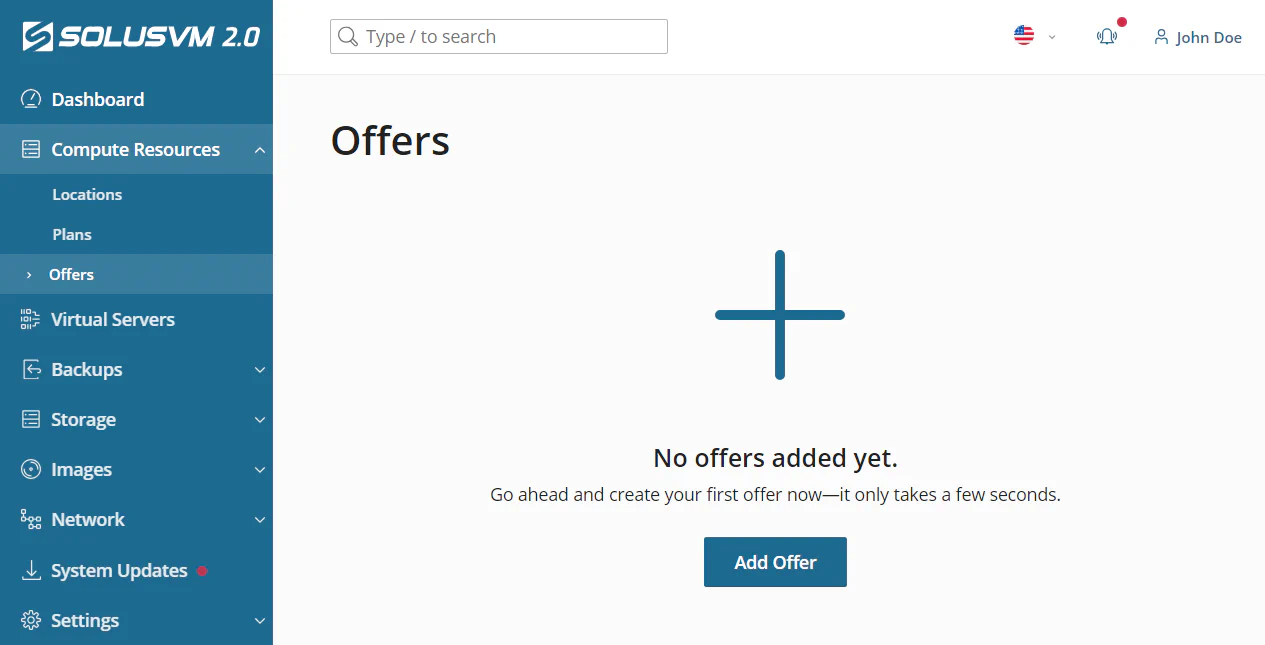
Give your offer a recognizable name.
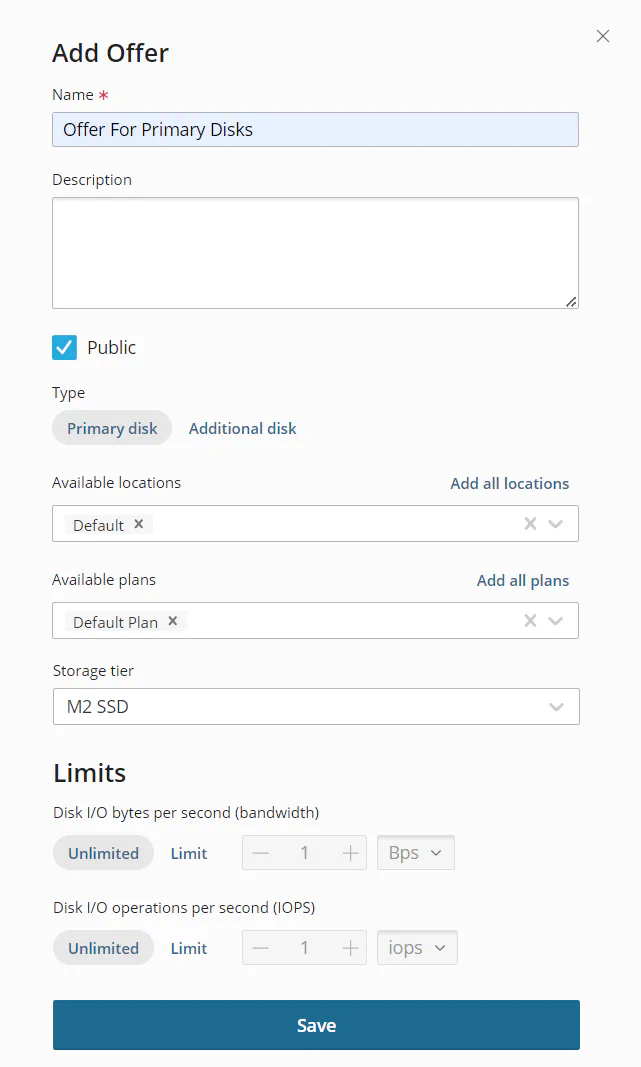
(Optional) Add a description to the offer that will help you single it out from other offers. For example, you can add the offer’s price.
(Optional) By default, the offer will become available to customers right after you create it. If you want to keep it private and release it manually, clear the Public checkbox.
Select the type of the disk you create the offer for: Primary Disk or Additional Disk.
Type a number of tokens. The tokens are units used to calculate and show the exact price for an offer for customers.
Select the locations and plans for which the offer will be available.
(Optional) Select a storage tag.
Note:
If no storage tag is selected, SolusVM will select a storage that has the lowest tag in the Storage Tier List.
(Optional) Set the limits for the disk size, bandwidth, and IOPS. The disk size limit is only available for primary disks.
Click Save.