Title here
Summary here
Tags Mechanism allows you to control storage selection for placing a primary disk or an additional disk. A storage tag is a marker that can be assigned to one or several storages of your choice, and afterwards be specified while creating or editing an offer. When a customer applies an offer to their virtual server, SolusVM will create a primary disk or an additional disk (depending on the offer type) on one of the storages to which the tag was assigned.
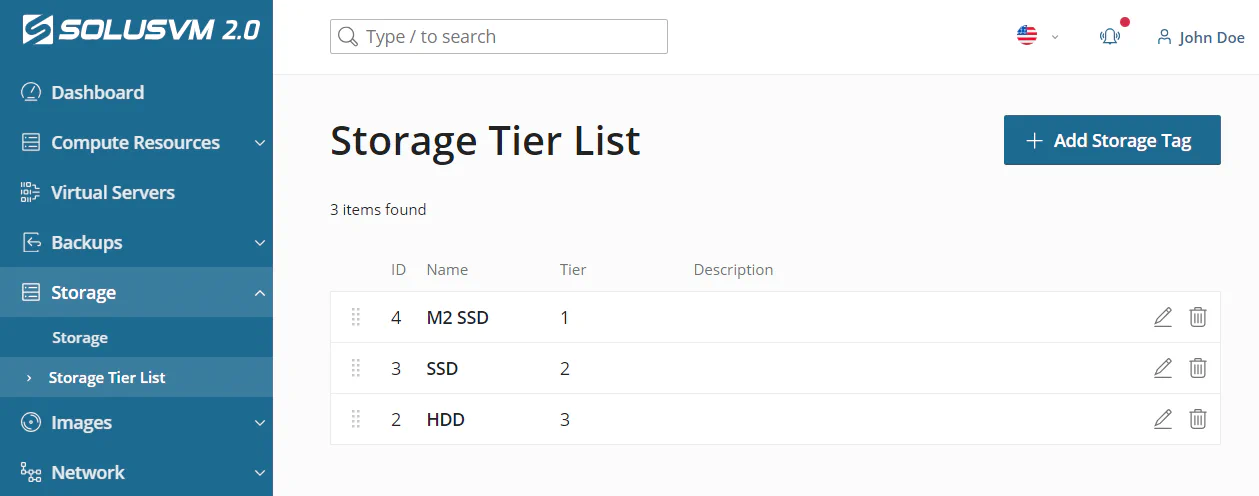
Storage Tier List is where you can create, edit, delete, and manage the order of storage tags. Note the following:
Now your tag is created and can be assigned to one or several storages.
To change the name or description of an existing tag:
 icon next to the storage tag whose name or description you want to change.
By default, SolusVM creates a primary disk and additional disks on storages that have the lowest tag in the Storage Tier List. The order of tags allows you to control storage selection.
Note:
We recommend that you order storage tags starting with tags for the fastest and highest priced storages to the slowest and cheapest ones.
To change the order of a storage tag in the list:
 icon next to the storage tag you want to re-order, and then drag it to the desired position in the list.
Note:
If you delete a tag, it will also be automatically cleared from settings of corresponding storages and offers.
To delete a storage tag:
 icon next to the storage tag you want to delete.