Title here
Summary here
You can set up the paid backups feature for customers to purchase in SolusVM. Customers can then create, store, and restore backups. Learn more about backups.
To offer paid backups, you first need to add a backup node and integrate billing. Then you enable paid backups in each plan individually. This allows you to have multiple plans with or without paid backups.
Note:
At the moment, paid backups work with postpaid billing only. In the future, paid backups will be available with prepaid billing as well.
To set up paid backups and enable them in a plan:
Log in to SolusVM.
Add a backup node to store backups.
Set up postpaid billing using the SolusVM WHMCS Pay As You Go module{target=_blank} (WHMCS calls it post-pay billing) or any custom billing system.
Navigate to Compute Resources > Plans.
Click the
 icon corresponding to the plan that will offer paid backups to customers. Ensure that you have already set the hourly and monthly prices in tokens for the plan.
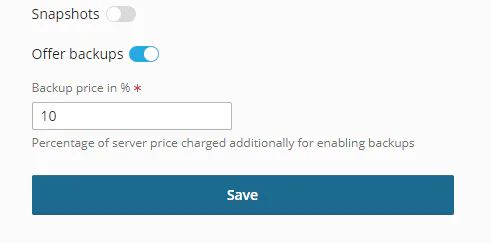
Turn on Offer backups, enter the backup price, and then click Save.
You set the backup price as a percentage of the server runtime price in tokens. For example, if the plan monthly price is 5,000 tokens and you set the backup price at 10%, your customers will additionally pay 500 tokens for this plan every month if backups are enabled.
The following image shows the backup pricing configuration:
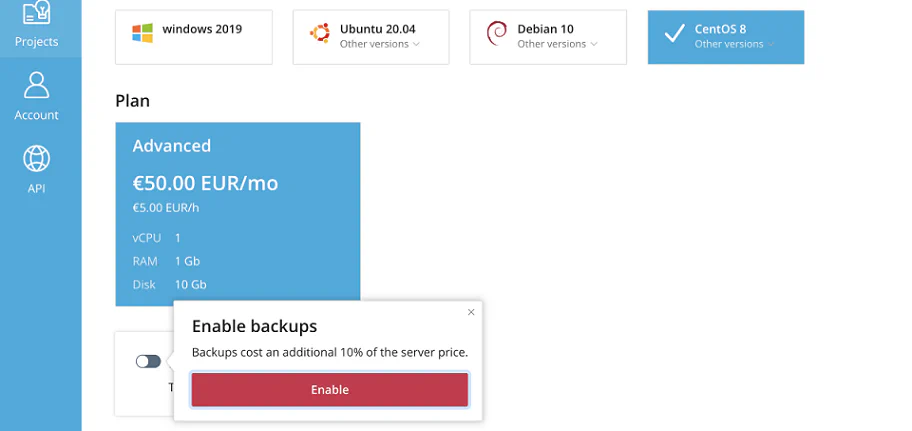
Customers can now purchase the backup feature when they create virtual servers. They can also purchase it for existing virtual servers at any time.
The following image shows the backup purchase option:
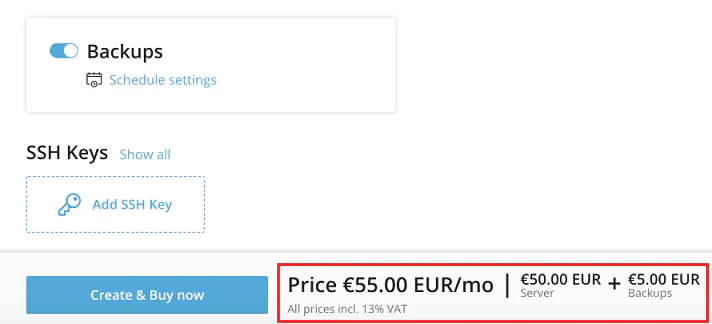
If customers choose to purchase the feature, they will see the final price, which consists of the virtual server and backup prices.
The following image shows the backup pricing display:
You and your customers can disable paid backups at any time. However, the effects differ depending on how backups are disabled:
To disable paid backups in a plan:
icon corresponding to the plan that will no longer offer paid backups to customers.Customers can resize virtual servers to increase the amount of disk space, CPU, and RAM. Resize is possible only if you have created plans that have more resources than the plan a customer currently uses.
Resizing a virtual server to a plan with enabled backups preserves the existing backups. Resizing to a plan that does not offer backups irrevocably deletes the existing backups.
Note:
SolusVM explicitly informs customers before any actions that can delete their backups.
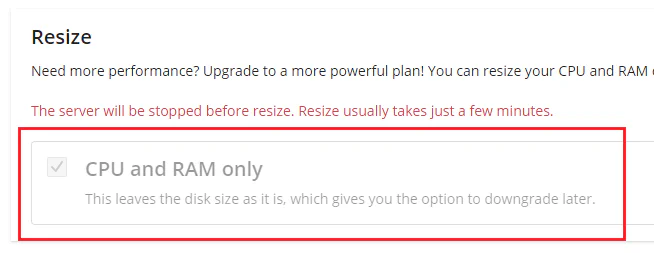
If a virtual server has at least one incremental backup, a customer can resize the server only by increasing CPU and RAM while leaving the disk space unchanged. See the CPU and RAM only setting in the following image:
The following image shows the CPU and RAM only resize option:
If a customer wants to resize the disk space, they need to do one of the following:
Warning:
Both options will irrevocably delete the existing backups for the virtual server.
Note:
SolusVM explicitly informs customers before any actions that can delete their backups.