Title here
Summary here
WHMCS Post-Pay Billing allows customers to provision virtual machines on-demand in SolusVM and pay for usage after consumption. This document explains how Post-Pay Billing works, including user enrollment, invoicing, and usage calculation.
The Post-Pay Model allows customers or end users to sign up and gain access to SolusVM to provision virtual machines on-demand. The system then bills the user after the service has been used for usage in the prior billing period.
With the Post-Pay Model of billing, no purchase or order is necessary.
Users can sign up or activate their SolusVM user account via the provided landing page.
The enrollment process requires minimal information from the user necessary to create a WHMCS client account, along with email verification and agreement to your Terms of Service and (optionally) Post-Pay specific Terms & Conditions. The workflow is as follows:
Users can then access SolusVM at any time via a provided SSO link within the WHMCS client area dashboard.
With the Post-Pay Model, customers use the SolusVM control panel to provision and manage virtual machines.
The WHMCS client area dashboard displays one of the following two panels, depending on the user’s current SolusVM enrollment status:
| Not Enrolled in SolusVM | Enrolled in SolusVM |
|---|---|
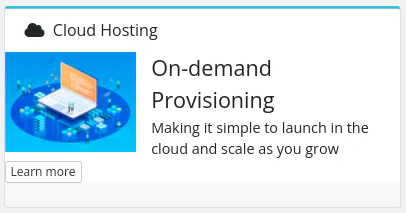 | 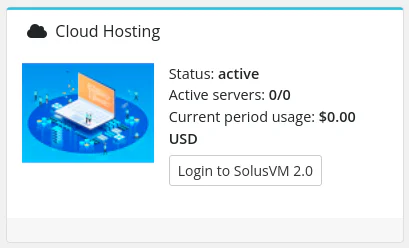 |
For enrolled users, click the Log in to SolusVM button to access the SolusVM control panel at any time via automated single sign-on. Non-enrolled users receive a shortcut to the provided landing page to learn more and sign up.
The system generates invoices on the first of each month for all usage accrued in the immediately preceding month.
For example, on the first of August, the system generates invoices for the usage by all users in the month of July.
SolusVM tracks the uptime of every virtual machine and bills uptime at the hourly rate of tokens that you define within the SolusVM software.
When generating an invoice, WHMCS requests the uptime totals for each user from the SolusVM system and then creates an invoice with an itemized list of resources (virtual machines) and the amount due. The system calculates the amount by taking the token usage value provided by the SolusVM system and multiplying it by the token pricing that you have defined in WHMCS.
A cron task manages invoice generation and user management.
The cron task executes once per day.
You can trigger the cron task manually using the following command:
php crons/cron.php do --Solusvm2Automation -vvvAutomatic invoice generation only occurs on the first day of each month.
To manually trigger invoice generation:
Open the WHMCS configuration file configuration.php. You can find this file in your WHMCS root directory, for example: /var/www/vhosts/whmcs.example.tld/httpdocs/configuration.php.
Back up the file first:
cp -p configuration.php configuration.backup.phpAdd the following lines to configuration.php:
$solus = [
    'invoicingOverride' => true,
    // To generate invoices for October 2022
    'invoicingDate' => \WHMCS\Carbon::createFromFormat('Y-m-d', '2022-11-01'),
];
Execute the command:
php crons/cron.php do --Solusvm2Automation -vvvRemove the added lines from configuration.php after execution.