Title here
Summary here
With 360 Monitoring integration configured, you can provision virtual servers with 360 Monitoring agent installed and configured.
Note:
In order to use 360 Monitoring integration with SolusVM provisioning system, make sure that the WHMCS module is up to date{target=_blank}. The version of the module must be v1.0.38 or higher. Update the module as per our documentation{target=_blank}.
Log in to your WHMCS administrator web interface.
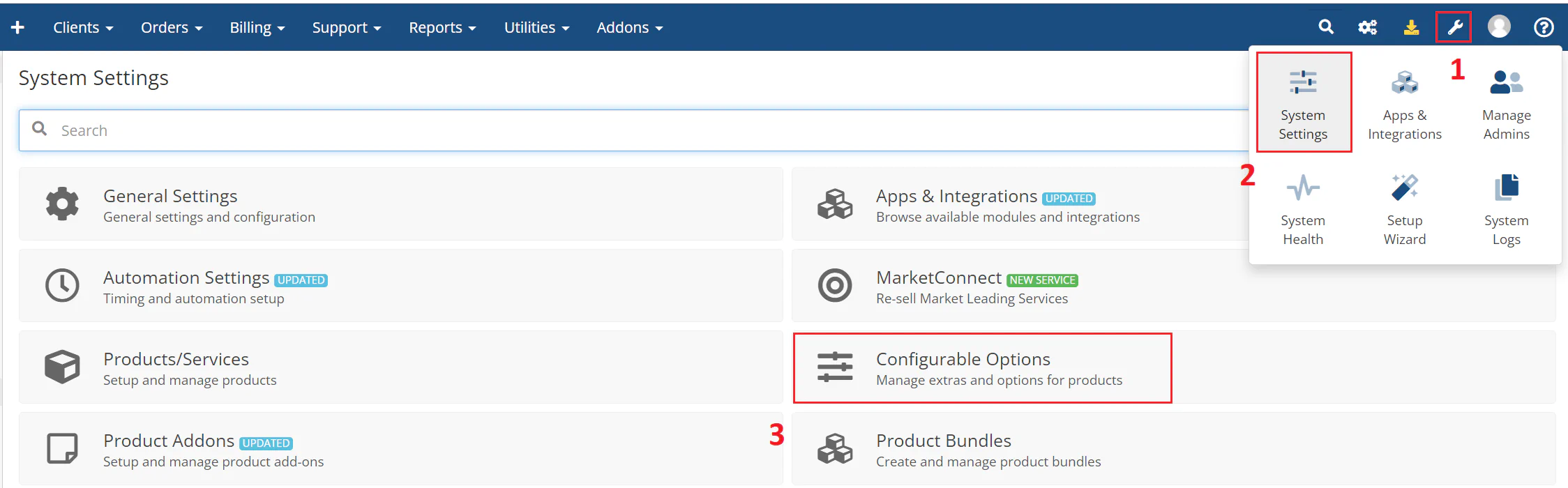
Navigate to System Settings > Configurable Options.
The following image shows the System Settings menu:
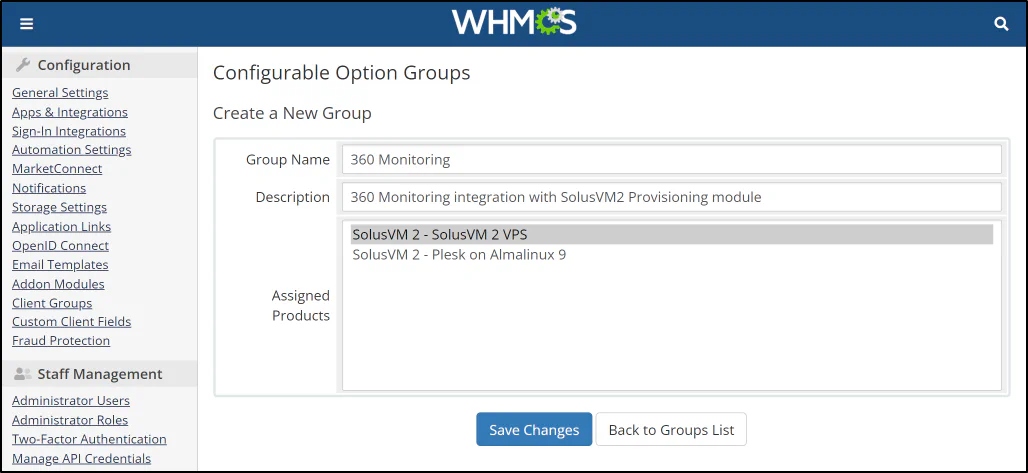
Click Create a New Group (for example, 360 Monitoring), then assign the option to the required products in the Assigned Products window. In this example, the product is called SolusVM VPS.
The following image shows the group and product assignment:
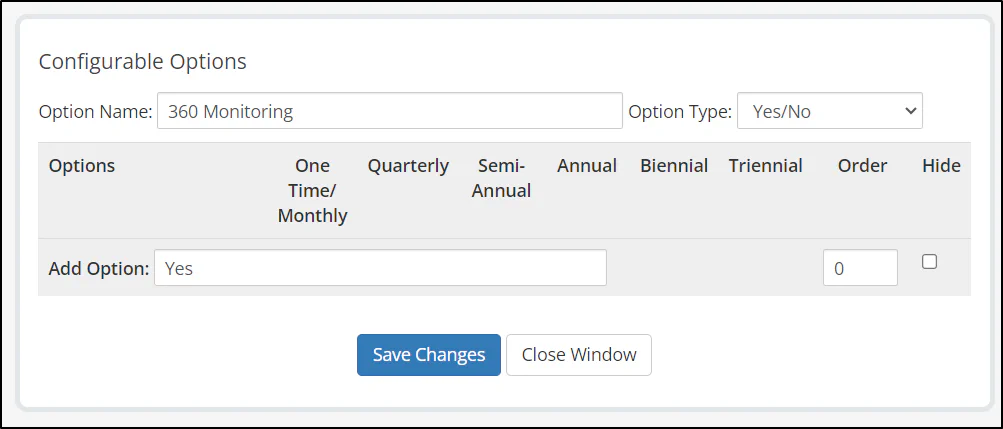
Click Add New Configurable Option, and then enter exactly the following values:
360 MonitoringYes/NoYesThe following image shows the configurable option settings:
Click Save Changes. You can now specify the pricing for the option.
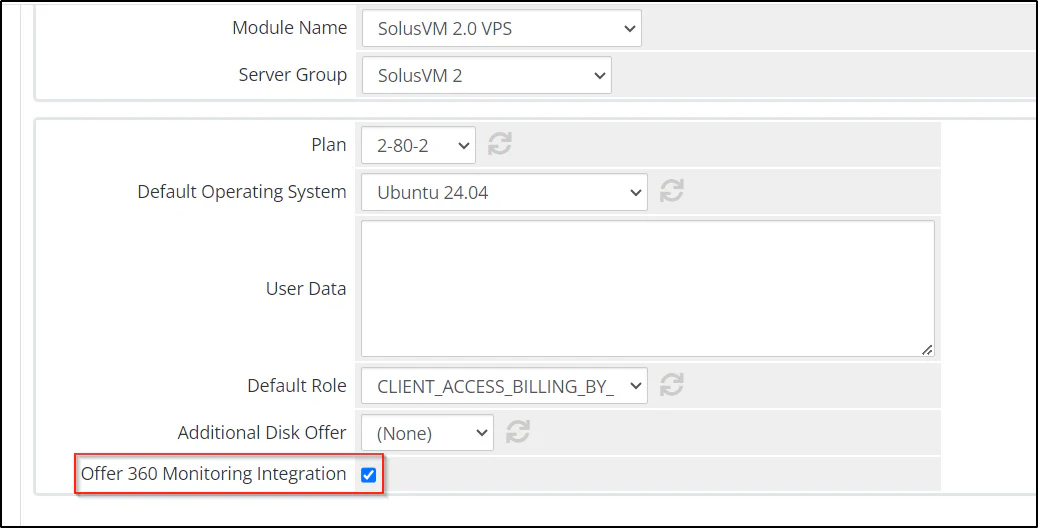
Navigate to System Settings > Products/Services, select the required product (SolusVM VPS in this example), navigate to Module Settings, and select the Offer 360 Monitoring integration checkbox.
The following image shows the 360 Monitoring integration checkbox:
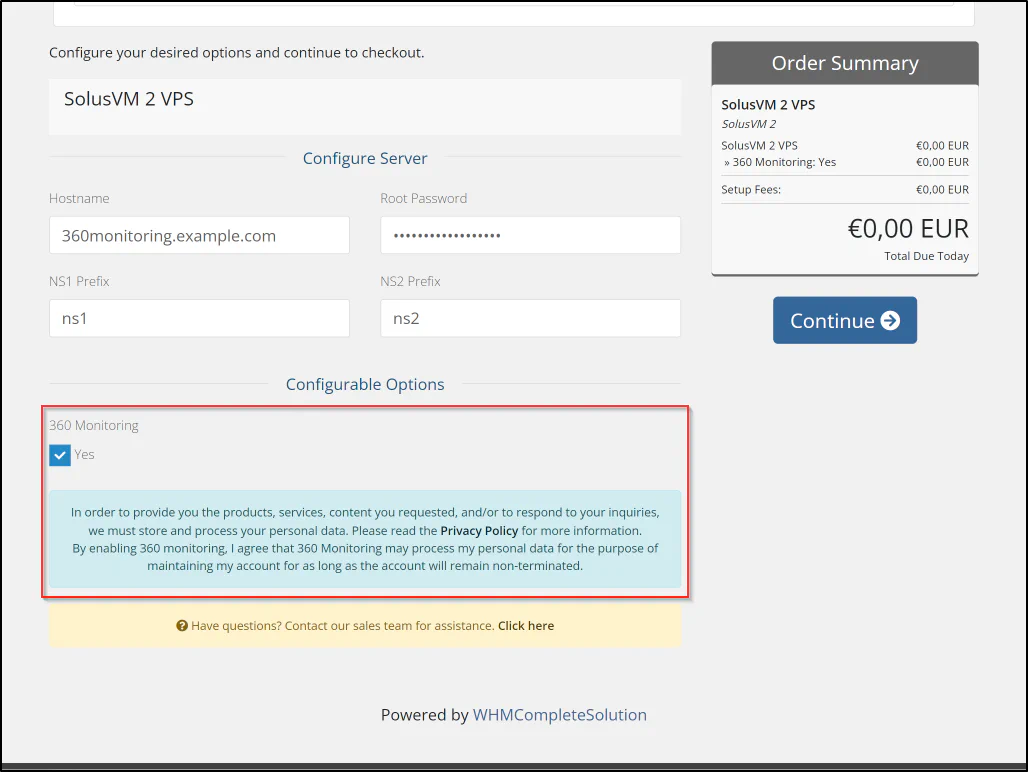
The following image shows the 360 Monitoring option in the customer order page:
The following describes how the 360 Monitoring integration works:
360 Monitoring.