Title here
Summary here
You can configure vCPU cores as a customizable option for SolusVM virtual servers in WHMCS. This allows customers to select their desired number of CPU cores when ordering.
Note:
This option is applicable for both KVM and VZ virtualizations.
Log in to your WHMCS administrator web interface.
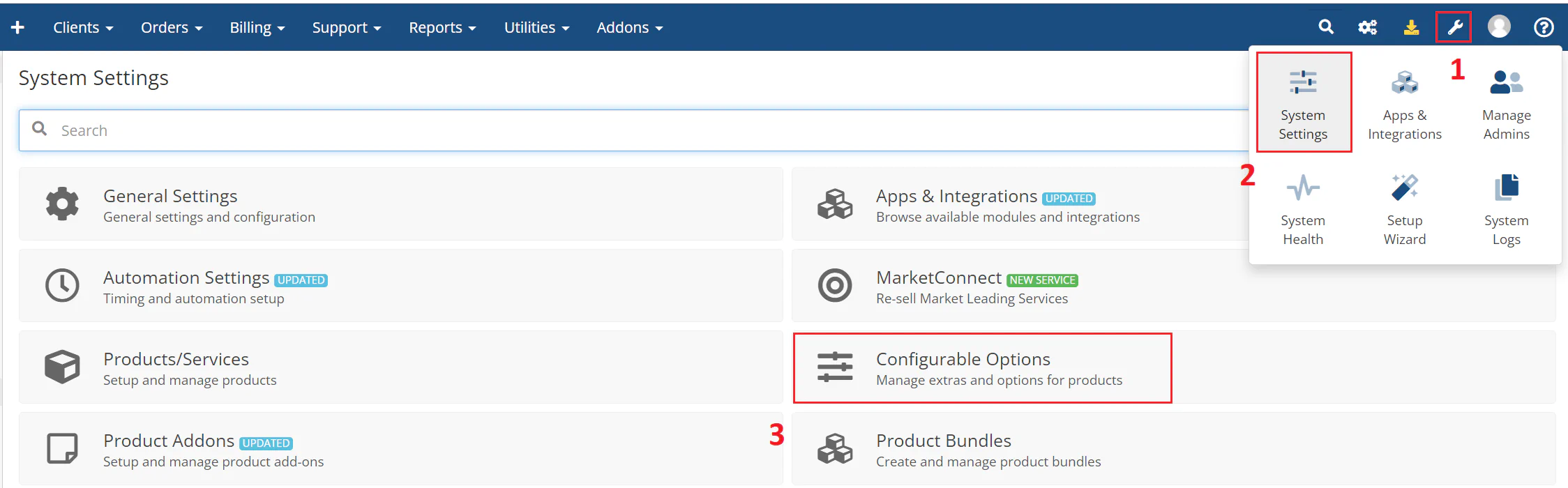
Navigate to System Settings > Configurable Options.
The following image shows the System Settings menu:
Click Create a New Group or select an existing group.
Note:
We recommend keeping configurable option group for resource selection separated from other groups. You can use one configurable option group for several resources, but do not mix them with Operating System, Application or Location.
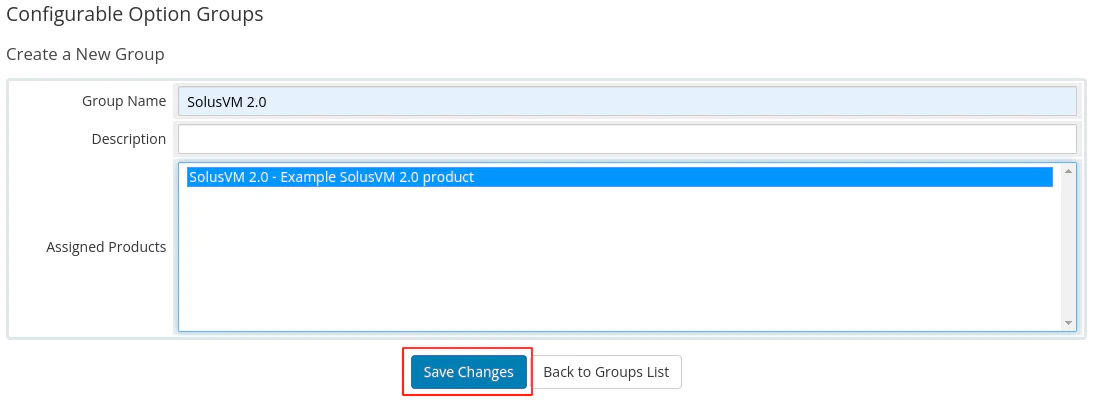
Enter a group name, select the product you created earlier to assign to the group, and then click Save Changes.
The following image shows the configurable options group creation:
Click Add New Configurable Option. A new browser window opens where you can specify the option settings.
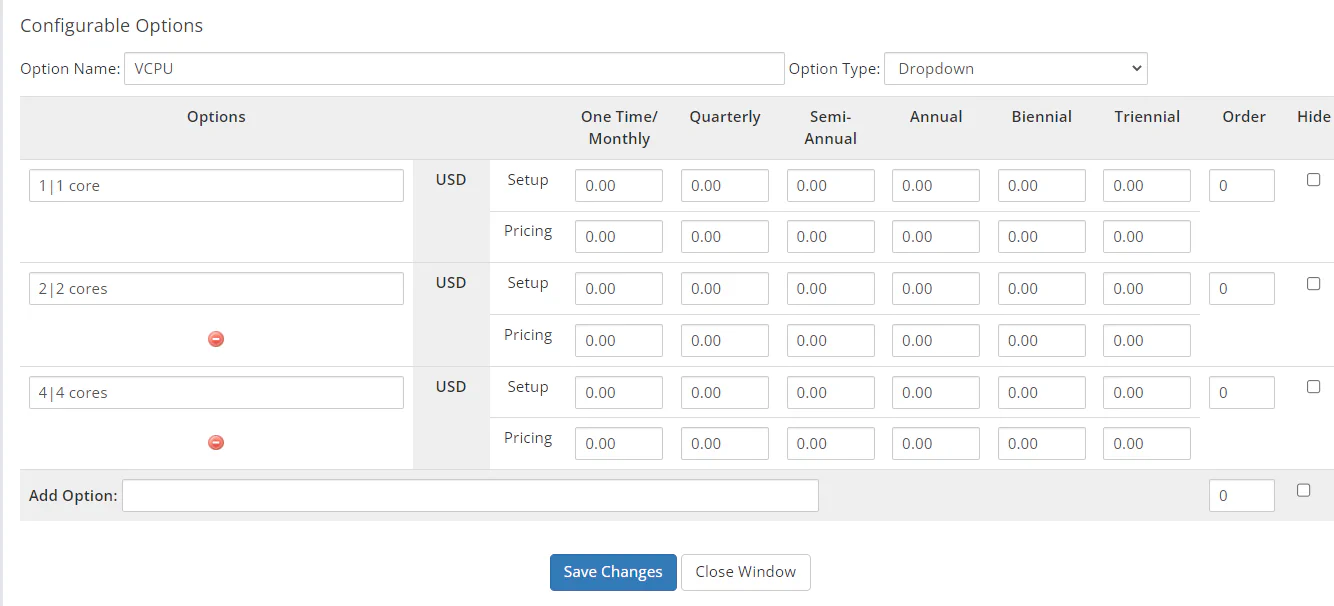
Enter VCPU in the option name field and select Dropdown as the option type.
In the Add Option field, enter the option value following the pattern: VCPU_VALUE|RESOURCE_NAME, and then click Save Changes. The pattern components are:
VCPU_VALUE — The number of vCPU cores you want to allocate for the SolusVM virtual server.RESOURCE_NAME — The name of the resource option to display in WHMCS.In this example, options are added to select 1 vCPU core (VCPU_VALUE 1), 2 (VCPU_VALUE 2), and 4 (VCPU_VALUE 4) as a configurable option.
Repeat the previous step for each vCPU core option you want to offer. Once finished, click Close Window.
The following image shows the vCPU configuration: