Title here
Summary here
You can configure vGPU profile selection as a customizable option for SolusVM products in WHMCS. This allows customers to choose an NVIDIA GPU profile when ordering a virtual server.
Important:
SolusVM does not support changing a server’s vGPU profile through WHMCS. Customers can only select a vGPU profile when ordering the server for the first time. To change a server’s vGPU profile, detach the current vGPU and attach a new one. For steps, see our Virtual GPUs (vGPUs) documentation.
Before you configure a vGPU Profile configurable option, make certain that:
For more information and steps to enable vGPU support, configure vGPU, and create a vGPU-enabled plan, see our Virtual GPUs (vGPUs) documentation.
If you also offer passthrough GPUs, see GPU.
Log in to the WHMCS Admin Area.
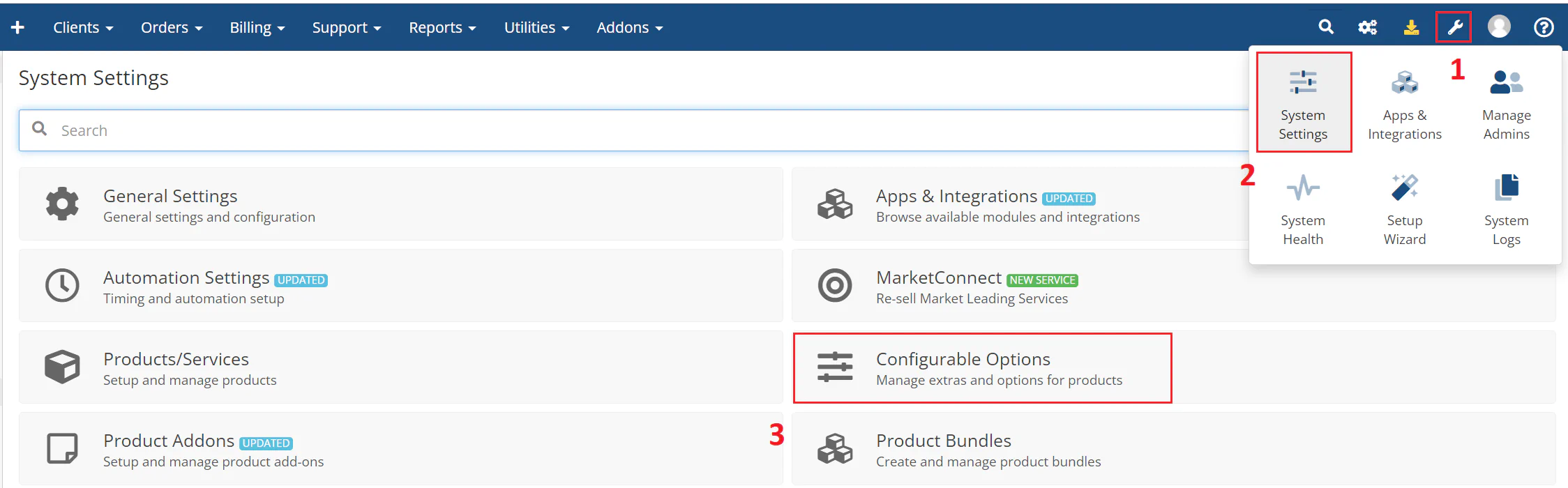
Go to Configuration > System Settings > Configurable Options:
Click Create a New Group or select an existing group.
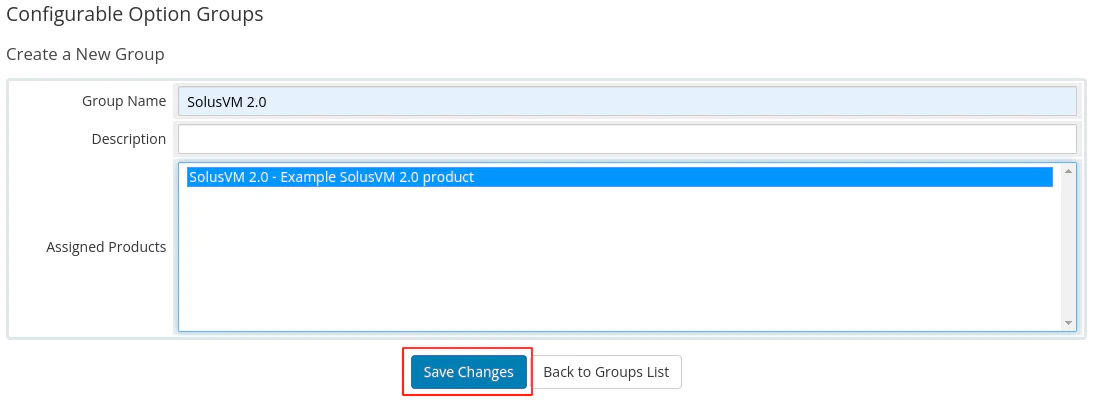
Enter a group name, select the product you created earlier to assign to the group, and then click Save Changes.
Click Add New Configurable Option and specify the option settings.
Enter vGPU Profile as the option name and select Dropdown as the option type.
Run the following command on the SolusVM management node to retrieve the GPU profile IDs:
docker exec -it $(docker ps -q -f name=solus_postgres | head -n1) psql -U$(docker exec $(docker ps -q -f name=solus_postgres | head -n1) env | grep POSTGRES_USER | awk -F "=" {'print $2'}) $(docker exec $(docker ps -q -f name=solus_postgres | head -n1) env | grep POSTGRES_DB | awk -F "=" {'print $2'}) -c 'SELECT gp.id, gp.name, COUNT(DISTINCT g.compute_resource_id) AS connected_crs_count FROM gpu_profiles gp LEFT JOIN gpus g ON g.gpu_profile_id = gp.id GROUP BY gp.id ORDER BY gp.name;'The output lists each profile’s ID, name, and the number of compute resources currently using that profile:
 id |     name      | connected_crs_count
----+---------------+---------------------
 17 | NVIDIA L4-12A |                   0
  9 | NVIDIA L4-12Q |                   0
  4 | NVIDIA L4-2Q  |                   1
  7 | NVIDIA L4-6Q  |                   1
(4 rows)
Record the id and name values for the profiles that you want to offer.
Important:
Server provisioning succeeds only for profiles with a connected_crs_count value of 1 or higher.
In the Add Option text box, enter the option value using the format: GPU_PROFILE_ID|DISPLAY_NAME, where:
GPU_PROFILE_ID is the id value from the command output.DISPLAY_NAME — The label that displays to customers.Note:
0|None as the first value. If you also offer the
GPU option, you must add this value.Click Save Changes.
Repeat steps 8 and 9 for each GPU profile that you want to offer, and then click Close Window.