Adding Shared LVM Storage
Storing Virtual Servers' data remotely instead of locally has its advantages. SolusVM 2 provides support for Shared LVM Storage using one or more iSCSI targets for storing data.
In this topic, you'll learn how to do the following:
- Add Shared LVM Storage to your SolusVM Cluster.
Prerequisites
-
You must have configured one or more iSCSI targets that will provide the disk space.
-
Each iSCSI target must be reachable over the network from all Compute Resources that will be using it for Shared LVM Storage.
Known Issues and Limitations
-
Support for Virtuozzo Hybrid Server/OpenVZ 7 is not possible because of their outdated tooling.
-
At the moment, SolusVM 2 Shared LVM implementation does not support Thin LVM or snapshots.
Adding the Storage
The process of adding Shared LVM Storage can be split into three parts:
-
Configuring an iSCSI initiator on every Compute Resource that will be using Shared LVM Storage.
-
Configuring LVM and creating one or more volume group(s).
-
Adding Shared LVM Storage in SolusVM 2.
A few notes before you begin:
-
The instructions here are meant as a general guidance, and not the only possible, or even the best, way to configure Shared LVM Storage. Experienced Linux administrators should be able to fine-tune the parameters and have Shared LVM support work just fine.
-
You should be comfortable using the command line and editing configuration files by hand.
-
The specific steps may vary slightly depending on the OS a particular Compute Resource runs.
Configuring an iSCSI Initiator
To configure an iSCSI initiator on a Compute Resource:
- Install the necessary packages:
- (On Debian or Ubuntu)
apt install open-iscsi multipath-tools lvm2-lockd sanlock. - (On AlmaLinux)
yum install iscsi-initiator-utils device-mapper-multipath lvm2-lockd sanlock
- (On Debian or Ubuntu)
- Start, enable, and configure the
iscsidservice:systemctl start iscsid systemctl enable iscsid iscsiadm -m discovery -t sendtargets -p <IP address[:port]> (substitute the IP address of the iSCSI target's portal for "<IP address>". If the "[:port]" parameter is omitted, the default "3260" value is used) iscsiadm -m node -L all iscsiadm -m node --op update -n node.startup -v automatic -
Edit the
/etc/lvm/lvm.conffile and set theuse_lvmlockdparameter to "1". The line must look like thisuse_lvmlockd = 1. -
Edit the
/etc/lvm/lvmlocal.conffile and set thehost_idparameter. The parameter must be a number between 1 and 2000, and must be unique for every Compute Resource. For example, you can usehost_id = 1for one Compute Resource,host_id = 2for another, and so on. -
Start, enable, and configure the
multipathdservice:systemctl start multipathd systemctl enable multipathd - Edit the
/etc/multipath.conffile by adding the following lines to it (if the file does not exist, create it first, and give it the "644" permissions):defaults { user_friendly_names yes } - Find the wwid of the device corresponding to the iSCSI initiator and add it to the wwids file:
lsblk /lib/udev/scsi_id -g -u -d /dev/<device name> (substitute the name of the device for "<device name>", for example, "-d /dev/sda") multipath -a <WWID> (substitute the output of the previous command, which should look like an alphanumeric string, for <WWID>. For example, "-a 3600a0980383234526f2b595539355537") multipath -r - Restart the
multipathdservice:systemctl restart multipathd - Make sure that the
multipathdservice is configured properly:multipath -llIf you performed all the steps correctly, the output should look like this:3600a0980383234526f2b595539355537 dm-1 NETAPP,LUN C-Mode size=300G features='3 queue_if_no_path pg_init_retries 50' hwhandler='1 alua' wp=rw |-+- policy='service-time 0' prio=50 status=active `- 7:0:0:0 sda 8:16 active ready running - Start and enable locks (we strongly recommend sanlock, and cannot guarantee that using another lock manager will not cause issues):
You have now configured the iSCSI initiator for your iSCSI target on a single Compute Resource. Now, repeat the procedure on every Compute Resource that will be offering Shared LVM Storage using that specific iSCSI target. Make sure to give each Compute Resource a unique
systemctl start lvmlockd systemctl enable lvmlockd systemctl start sanlock systemctl enable sanlockhost_idparameter during step 4.
Once you have configured the iSCSI initiator on every Compute Resource, you need to configure LVM and create one or more volume group(s).
Configuring LVM and Creating a Volume Group
To configure LVM and create a volume group:
- Run the following command only once, on any one Compute Resource you configured an iSCSI initiator on:
vgcreate --shared <vg_name> /dev/mapper/<wwid>(substitute a name of the volume group for "", and the wwid of the device corresponding to the iSCSI initiator for " ". For example, "vgcreate --shared shared_vg /dev/mapper/3600a0980383234526f2b595539355537") - Run the following command on every Compute Resource you configured an iSCSI initiator on:
vgchange --lock-start - (AlmaLinux) Run the following command on every Compute Resource you configured an iSCSI initiator on:
vgimportdevices --allOnce you have created a volume group, every Compute Resource you performed steps 2 and 3 on should be able to use the volume group. You can verify it by running thevgscommand on those Compute Resources. If you performed the steps correctly, the output should look like this:
VG           #PV #LV #SN Attr   VSize    VFree
shared_vg      1   3   0 wz--ns <300.00g <296.00g
The final step is to add the Shared LVM Storage in SolusVM 2.
Adding Shared LVM Storage
To add Shared LVM Storage:
-
Go to Storage, and then click Add Storage.
-
Give your Storage a name.
-
(Optional) Select a Storage tag.
-
Set the "Type" parameter to "Shared LVM"
-
Specify the volume group name you set when creating the volume group.
-
Click Save.
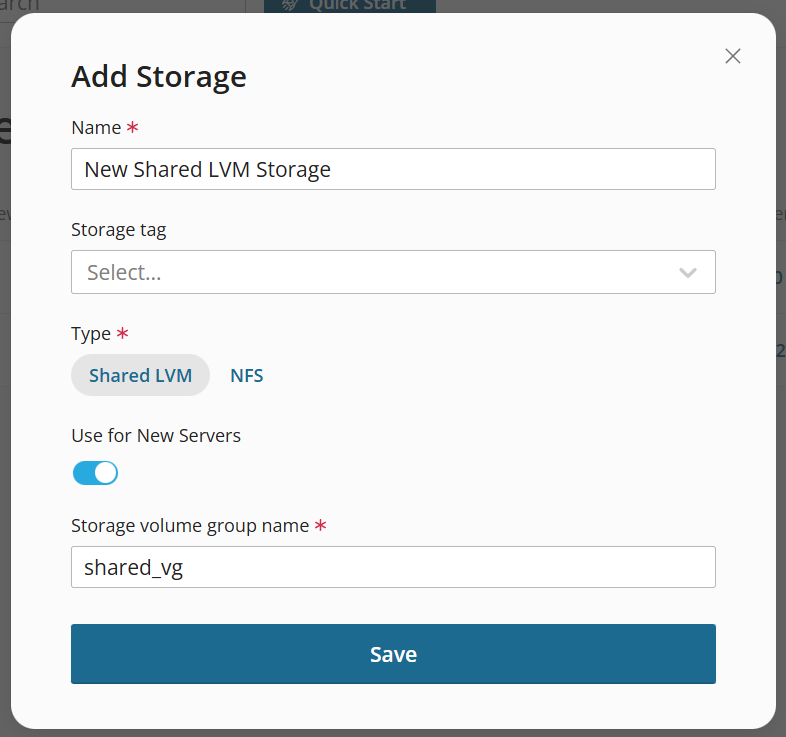
You have added Shared LVM Storage. You can now assign it to one or more compute resources.