Changing Virtual Servers' Storage Type
You may want to change existing Virtual Servers' Storage type when a more suitable Storage type becomes available (for example, you've set up a NAS and want to move the Virtual Servers from local to remote Storage).
In this topic, you'll learn how to do the following:
- Change the Storage type of Virtual Servers that have the KVM virtualization type.
Overview
Different Storage types have different advantages and drawbacks. When it becomes advantageous or necessary to change the Storage type for one or more Virtual Servers, instead of recreating them, you can change their storage type.
Changing the Storage Type
You can change the Storage type of any number of Virtual Servers at once. Those Virtual Servers can have different Storage types, and be hosted on different Compute Resources. After the change, the Storage type for all selected Virtual Servers will become the selected Storage type.
The only limitations are as follows:
-
Storage type can only be changed for Virtual Servers that have the KVM virtualization type.
-
The selected Storage type must be configured on each Compute Resource hosting one or more selected Virtual Servers.
-
The selected Storage type must have enough free disk space to accomodate all disks of all selected Virtual Servers.
Note
You will not be able to change the Storage type if your selection includes one or more Virtual Servers that have the VZ virtualization type, because neither the Storage nor the image type can be changed for those. To make sure that you only select Virtual Servers that have the KVM virtualization type, we recommend applying the "virtualization = KVM" filter on the "Virtual Servers" page.
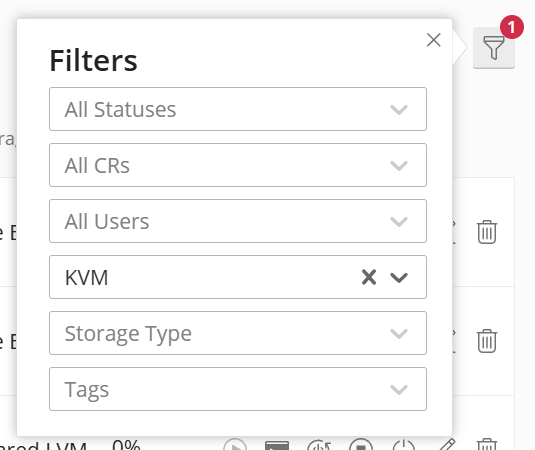
To change the Storage type of one or more Virtual Servers:
-
Go to Virtual Servers.
-
Select the Virtual Server(s) whose storage type you want to change, and then click the
 button.
 -
Select the desired Storage and image types, and then click Start.
Now, tasks for changing the Storage type for the selected Virtual Server(s) will be created. You can see them on the "Tasks" page.
For each selected Virtual Server, a vm-storage-discover task is created. If a vm-storage-discover task fails, changing the Storage type for that Virtual Server is aborted. In this case, we recommend that you troubleshoot the root cause before trying again. To learn about the specific error(s) that caused the failure, click the  button next to the "Failed" status.

If a vm-storage-discover task succeeds, a vm-change-storage task is created for that Virtual Server, and changing the Storage type for that Virtual Server commences.
Note
During the process of changing the Storage type, the Virtual Server can operate normally. Reading from or writing to the disk should not interrupt the process or cause it to fail.
If a vm-change-storage task fails, changing the Storage type for that Virtual Server is aborted. Troubleshoot the root cause, and try again. If it succeeds, the process finishes, and that Virtual Server's Storage type is changed.